Why Is My Website Not Showing Up on Google? How to Fix It
By Makedonka Tochevska · Last Edited October 2026
If your website is not showing up on Google, it doesn’t automatically mean you need better SEO. Google may not have discovered the page yet, it may be unable to crawl or index it, or the page may already be indexed but simply not rank for the search you’re checking.
That’s why the first step shouldn’t be changing keywords, rewriting content, or submitting the same page to Google again and again. You need to find out where the problem actually is.
When I troubleshoot a website that isn’t appearing on Google, one of the first things I check is whether the affected page is actually indexed. I’ve worked on websites where pages weren’t appearing because of indexing and sitemap issues, so Google Search Console is usually my starting point.
In this guide, I’ll show you how to check whether Google knows about your page, whether it can crawl and index it, and what to do if the page is indexed but still doesn’t appear for the searches you expect.
The important distinction to remember is:
Not showing up on Google is a symptom, not a diagnosis.
Once you know whether you’re dealing with a discovery, crawling, indexing, canonical, ranking, or local search problem, it becomes much easier to determine what actually needs to be fixed.
TL;DR: Why Is My Website Not Showing Up on Google?
If your website isn’t showing up on Google, first check the affected URL in Google Search Console. The problem usually falls somewhere in the search process: Google hasn’t discovered the page, can’t crawl it, hasn’t indexed it, has chosen another canonical URL, or has indexed it but isn’t ranking it for the search you’re checking.
Use this order to diagnose the problem:
- Check whether the page is indexed with URL Inspection.
- Check crawling and indexability if it isn’t indexed.
- Check your XML sitemap and internal links to make sure Google can discover the page.
- Look for an accidental
noindexsetting, especially on WordPress websites. - Check the canonical URL to see whether Google selected a different version.
- If the page is indexed but you still can’t find it, investigate keyword targeting, search intent, relevance, and rankings instead.
- If you’re trying to appear in Google Maps, check your Google Business Profile because that’s a local SEO issue rather than a website indexing issue.
The key is to diagnose the problem before trying to fix it. Not showing up on Google doesn’t always mean your website isn’t indexed.
TABLE OF CONTENTS
- First, Check Whether Your Website Is Actually Indexed
- Find Out Why Your Website Isn’t Showing Up on Google
- Google Hasn’t Discovered Your Website or Page Yet
- Google Can’t Crawl the Page
- Your Page Is Set to Noindex
- Google Crawled the Page but Hasn’t Indexed It
- Google Chose a Different Canonical URL
- Your Website Is New
- Your Website Changed URLs After a Redesign or Migration
- Your Website Is Indexed but Isn’t Ranking for the Search
- You’re Looking for Your Business in Google Maps
- How to Get Your Website to Show Up on Google
- What NOT to Do When Your Website Isn’t Showing on Google
- How Long Does It Take for a Website to Show Up on Google?
- My Troubleshooting Checklist When a Website Isn’t Showing on Google
- Common Reasons a Website Doesn’t Show Up on Google
- FAQs About Websites Not Showing Up on Google
- Final Thoughts: Diagnose the Problem Before Trying to Fix It
First, Check Whether Your Website Is Actually Indexed
Before changing anything on your website, check whether Google has actually indexed the page you’re trying to find.
A page that isn’t indexed cannot appear in Google’s organic search results. But if the page is already indexed and you still can’t find it for a specific search, you’re likely dealing with a different problem, such as keyword targeting, relevance, or rankings.
This distinction can save you from fixing things that aren’t broken.
Check the URL in Google Search Console
The most reliable place to start is Google Search Console’s URL Inspection tool.
Enter the exact URL of the page that isn’t showing up. Search Console will tell you whether the URL is on Google and provide information about how Google discovered, crawled, and indexed the page.
When I’m troubleshooting this issue, URL Inspection and indexing status are usually among the first things I check. If the page isn’t indexed, I can investigate why. If it is indexed, I know I need to look beyond basic indexing.
Pay attention to information such as:
- whether the URL is indexed
- whether Google was able to crawl the page
- whether indexing is allowed
- the last crawl
- the user-declared canonical
- the canonical URL Google selected
If you fix an issue, you can test the live URL and request indexing again. Requesting indexing doesn’t guarantee that Google will index the page, but it can notify Google that the URL has changed and is ready to be crawled again.
Can You Use a site: Search Instead?
You can also search Google for:
site:yourdomain.com
or for a specific URL:
site:yourdomain.com/page-url/
This can give you a quick indication of whether Google knows about your website or page, but I wouldn’t use it as the final diagnosis.
If you own the website, Google Search Console gives you much more useful information about the actual URL and any crawling or indexing problems.
Once you know the page’s indexing status, you can start identifying why your website isn’t showing up on Google instead of guessing what needs to be fixed.
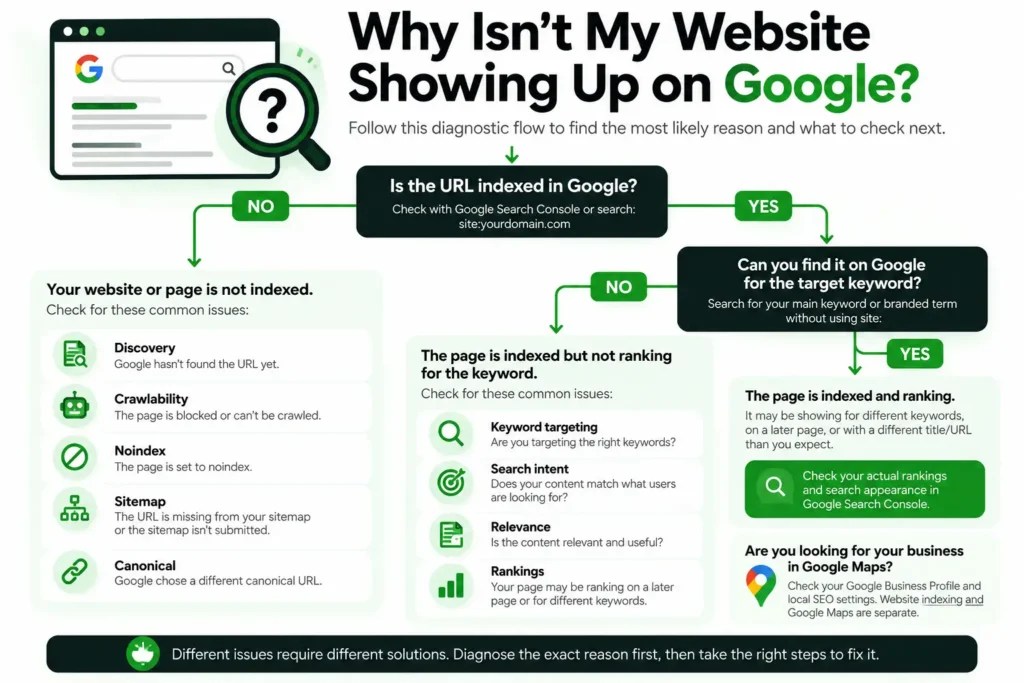
Find Out Why Your Website Isn’t Showing Up on Google
Once you know whether the page is indexed, the next step is identifying where the problem is happening. A website that Google hasn’t discovered requires a different fix from a page that is already indexed but simply isn’t ranking for the search you’re checking.
Use this quick diagnostic table before making changes:
| What You Find | Likely Problem | What to Check Next |
|---|---|---|
| Google doesn’t know about the URL | Discovery issue | XML sitemap and internal links |
| Google knows the URL but can’t access it | Crawling issue | robots.txt, server response, and page accessibility |
| Indexing isn’t allowed | Indexing issue | noindex and website SEO settings |
| Google crawled the page but didn’t index it | Indexing/content issue | Search Console status, page quality, and duplication |
| Google selected another URL | Canonical issue | Canonical tags and duplicate URLs |
| URL is indexed but you can’t find it for your keyword | Ranking issue | Keyword targeting, search intent, and relevance |
| Website appears in organic search but not where expected in Maps | Local SEO issue | Google Business Profile |
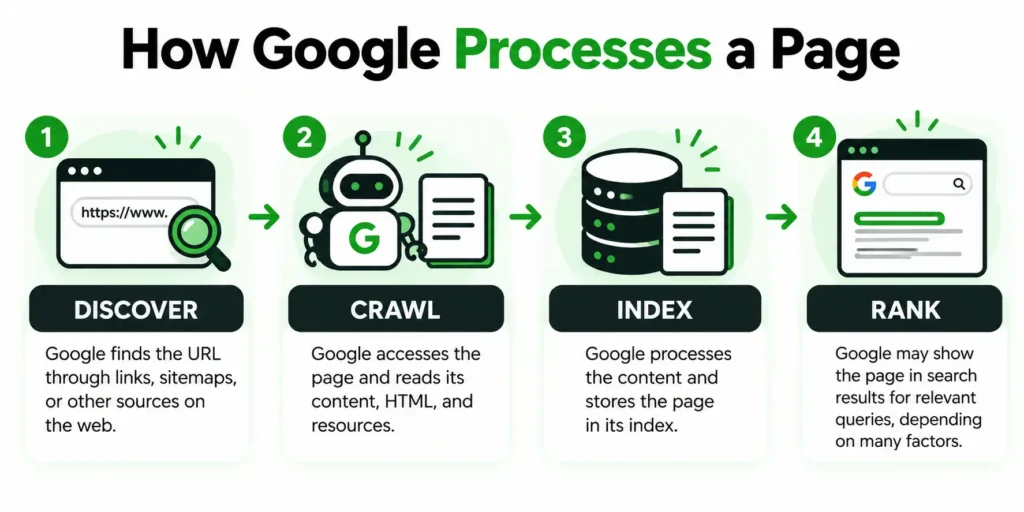
Think of Google’s process as a sequence:
Discover → Crawl → Index → Rank
If something goes wrong earlier in that sequence, working on the later stages won’t solve the underlying problem. For example, improving keyword targeting won’t make a noindex page appear in search results.
The sections below walk through each of these situations and what to check when you encounter them.
1. Google Hasn’t Discovered Your Website or Page Yet
If Google hasn’t discovered a URL, it can’t crawl or index it. This is especially common with new websites, recently published pages, or pages that aren’t properly connected to the rest of the site.
Google normally discovers new URLs through links it already knows about and XML sitemaps. If an important page has no internal links pointing to it and isn’t included in your sitemap, it can be harder for Google to find.
Make Sure the Page Is Internally Linked
Every important page should have a clear path from other relevant pages on your website.
For example, if you publish a new service page but never link to it from your navigation, services page, related blog posts, or other relevant content, you’re making it harder for both visitors and search engines to discover it.
Check that the page:
- has at least one relevant internal link pointing to it
- is accessible through a logical part of your website structure
- isn’t an orphan page with no internal links
- uses normal crawlable links rather than relying on unusual navigation or scripts
Internal links also help Google understand how pages relate to each other, so they remain important even after a URL has been discovered.
Check and Submit Your XML Sitemap
Your XML sitemap gives Google a list of URLs you want search engines to know about. Check that the affected page is included in the correct sitemap and that the sitemap has been submitted successfully in Google Search Console.
I’ve worked on websites where pages weren’t being indexed and the sitemap was part of the problem. In those cases, I fixed the sitemap issue first, then checked the affected URLs again in Search Console and worked through the indexing process step by step.
However, there’s an important distinction:
Being included in an XML sitemap does not guarantee that Google will index the page.
A sitemap helps Google discover and understand your URLs, but Google still decides which pages to crawl and index. If the page appears correctly in the sitemap but still isn’t indexed, the next step is to check whether Google can actually crawl it and whether anything is preventing indexing.
2. Google Can’t Crawl the Page
Google may know that a URL exists but still be unable to crawl it. If Googlebot can’t access the page properly, Google may not be able to process its content for indexing.
This is different from a discovery problem. The URL has already been found, but something is preventing Google from accessing it correctly.
Check Your robots.txt File
Your robots.txt file tells search engine crawlers which parts of your website they are allowed or not allowed to crawl.
A rule that blocks an important page or section of your website can prevent Googlebot from crawling it. This can sometimes happen after development work, migrations, staging setups, or changes to technical SEO settings.
Check your robots.txt file for rules affecting the URL or directory you’re troubleshooting, particularly Disallow directives.
It’s also important not to confuse robots.txt with noindex:
robots.txtcontrols whether Googlebot can crawl a URL.noindextells Google that a crawled page shouldn’t be included in its search index.
Blocking a URL in robots.txt is therefore not the recommended way to remove a page from Google’s index. If Google can’t crawl the page, it may also be unable to see a noindex directive placed on it.
Check Whether Google Can Access the Page
If robots.txt isn’t blocking the URL, check whether Google can successfully access the page.
In Google Search Console, inspect the affected URL and look at the page’s crawl and fetch information. You can also use Test Live URL to check the current version of the page rather than relying only on data from Google’s previous crawl.
Problems that can prevent or interfere with crawling include:
- server errors such as 5xx responses
- pages requiring a login or password
- broken or incorrect URLs
- redirect loops or problematic redirect chains
- DNS or hosting availability problems
- pages returning an unexpected HTTP status
If Google can’t reliably access the page, fix the accessibility issue first. Requesting indexing repeatedly won’t solve an underlying crawling problem.
Once Googlebot can access the URL successfully, you can move on to checking whether the page is actually allowed to be indexed.
3. Your Page Is Set to Noindex
If a page is set to noindex, you’re explicitly telling Google not to include that page in its search results. This is one of the first settings worth checking when a specific page isn’t showing up on Google.
I’ve encountered this on WordPress websites where a page was accidentally set to noindex. In that situation, rewriting the content or changing keywords won’t solve the problem. The indexing setting needs to be corrected first.
Check Your WordPress SEO Settings
If you use WordPress, check the indexing settings for the affected page in your SEO plugin. Depending on the plugin you use, the setting may appear as Index, Noindex, or an option asking whether search engines should be allowed to show the page in search results.
Make sure important public pages that you want to appear on Google aren’t accidentally set to noindex.
You should also check Settings → Reading in WordPress. The “Discourage search engines from indexing this site” option should normally be disabled on a live website that you want Google to index.
This setting is particularly worth checking after a website has moved from development or staging to the live domain, because indexing restrictions used during development can sometimes be left enabled by mistake.
After correcting an accidental noindex setting:
- Clear any website or server cache if necessary.
- Inspect the URL again in Google Search Console.
- Use Test Live URL to confirm Google can access the updated version.
- Request indexing.
Removing noindex makes the page eligible for indexing again, but it doesn’t guarantee that Google will immediately index or rank it.
Also remember that Google needs to be able to crawl the page to see the updated indexing directive. This is why crawling and indexing should be diagnosed separately rather than treating them as the same problem.
4. Google Crawled the Page but Hasn’t Indexed It
Sometimes Google can successfully crawl a page but still decide not to add it to its index. In Google Search Console, you may see statuses such as “Crawled – currently not indexed” or “Discovered – currently not indexed.”
These statuses describe different situations. If a URL is discovered but not indexed, Google knows it exists but may not have crawled it yet. If it is crawled but not indexed, Google has accessed the page but hasn’t added it to the index.
In either case, repeatedly requesting indexing isn’t necessarily the solution. You need to look at the page itself and how it fits into the rest of your website.
Check Whether the Page Provides Enough Unique Value
If Google has crawled the page but hasn’t indexed it, check whether the page provides a clear reason to exist as a separate search result.
Look for issues such as:
- very little useful or original content
- pages that are nearly identical to other pages on your website
- duplicate service or location pages with minimal differences
- automatically generated archive, tag, filter, or parameter pages
- pages that don’t clearly satisfy a specific search intent
- weak internal linking that makes the page appear unimportant within the site
Don’t respond by simply adding more words. A longer page isn’t automatically a more useful page.
Instead, ask what the page offers that isn’t already available elsewhere on your website. Strengthen the information, make the purpose of the page clearer, and add relevant internal links where they genuinely help users navigate to it.
After making meaningful improvements, inspect the URL again in Google Search Console and request indexing if appropriate.
If the page is useful, accessible, and indexable but Google still doesn’t index that exact URL, the next thing to investigate is whether Google has selected a different URL as the canonical version.
5. Google Chose a Different Canonical URL
Your page may be crawlable and indexable, but Google can still decide that a different URL should appear in search results instead.
This usually happens when Google finds multiple URLs with the same or very similar content. It then tries to select one version as the canonical URL, meaning the version it considers the main representative of that content.
For example, duplicate versions can sometimes exist because of:
- HTTP and HTTPS versions
- www and non-www versions
- URL parameters
- duplicate or very similar pages
- product or category filtering
- inconsistent internal links
- incorrect canonical tags
Check the Google-Selected Canonical in Search Console
Inspect the affected URL in Google Search Console and look for:
User-declared canonical — the URL your website indicates should be the preferred version.
Google-selected canonical — the URL Google actually chose as the representative version.
If these URLs are different, Google may be indexing another version instead of the page you’re checking.
That doesn’t automatically mean Google made a mistake. First, check whether the pages are genuinely duplicates and whether your website is sending consistent signals about which URL should be indexed.
Make sure that:
- the canonical tag points to the intended URL
- internal links consistently point to the preferred version
- the preferred URL is included in your sitemap
- duplicate versions aren’t being created unnecessarily
- redirects point users and search engines to the correct URL where appropriate
Avoid changing canonical tags simply because Google selected another URL. First understand why multiple versions exist and which page should actually be canonical.
If Google is correctly indexing another version of the same content, the original URL not appearing separately in search results may be completely normal.
Once you’ve ruled out canonicalization as the problem, another common situation to consider is much simpler: the website or page may just be new.
6. Your Website Is New
If your new website is not showing up on Google, it doesn’t necessarily mean something is wrong. Google first needs to discover the site, crawl its pages, process them, and decide which URLs to index.
However, you shouldn’t simply publish a new website and wait without checking whether you’ve made it easy for Google to find.
For a new website, I normally work through these steps:
- Set up and verify Google Search Console.
- Submit the website’s XML sitemap.
- Make sure important pages are connected through clear internal links and navigation.
- Inspect priority URLs using the URL Inspection tool.
- Confirm that crawling and indexing are allowed.
- Request indexing for important pages when appropriate.
- Give Google time to crawl and process the site.
Google doesn’t guarantee exactly when a new website or page will be crawled and indexed, so be careful with claims that a site will appear within a specific number of days.
Should You Request Indexing Manually?
For important new or recently updated pages, you can use Google Search Console’s URL Inspection tool to request indexing.
I use manual submission when appropriate, particularly for pages I want Google to recrawl after publishing or making important changes. Otherwise, Google can also discover and crawl pages naturally through your sitemap, internal links, and its normal crawling process.
Requesting indexing is useful, but it isn’t a shortcut around an underlying problem.
If a page is blocked from crawling, set to noindex, duplicated, inaccessible, or otherwise unsuitable for indexing, repeatedly clicking Request Indexing won’t fix it.
Fix the underlying issue first, confirm the updated page is accessible and indexable, and then request indexing if needed.
If your website isn’t new but stopped appearing after a redesign or URL change, the problem may instead be related to the migration and redirects.
7. Your Website Changed URLs After a Redesign or Migration
If your website used to show up on Google but pages disappeared after a redesign or migration, check whether their URLs changed.
For example, a service page might move from:
example.com/web-design/
to:
example.com/services/web-design/
If the old URL is removed without properly redirecting it, Google may continue trying to access the old page while the new URL has to be discovered and processed separately.
When I work on website redesigns or migrations where URLs change, I implement 301 redirects where needed, update internal links to point directly to the new URLs, and resubmit the updated sitemap. These steps help both users and search engines understand where the content has moved.
Check for Broken or Missing 301 Redirects
A 301 redirect tells browsers and search engines that a URL has permanently moved to another location.
After a redesign or migration, check that:
- old URLs redirect to the most relevant new URLs
- redirects aren’t pointing everything to the homepage
- internal links have been updated to use the new URLs
- redirect chains and loops haven’t been created
- the XML sitemap contains the new canonical URLs rather than old redirected URLs
- important new URLs are crawlable and indexable
You should also inspect priority pages in Google Search Console after the migration to see how Google is processing the new URLs.
Avoid changing URLs unnecessarily during a redesign. If a URL already works well and there is no good reason to change it, keeping it can reduce the number of moving parts Google has to process.
If you’re planning a redesign rather than troubleshooting one that’s already happened, our Website Redesign Checklist covers the SEO and technical checks that should be completed before and after launch.
If your URLs, redirects, sitemap, and indexing are all correct but you still can’t find the page when searching for its target keyword, you may no longer be dealing with an indexing problem at all.
8. Your Website Is Indexed but Isn’t Ranking for the Search
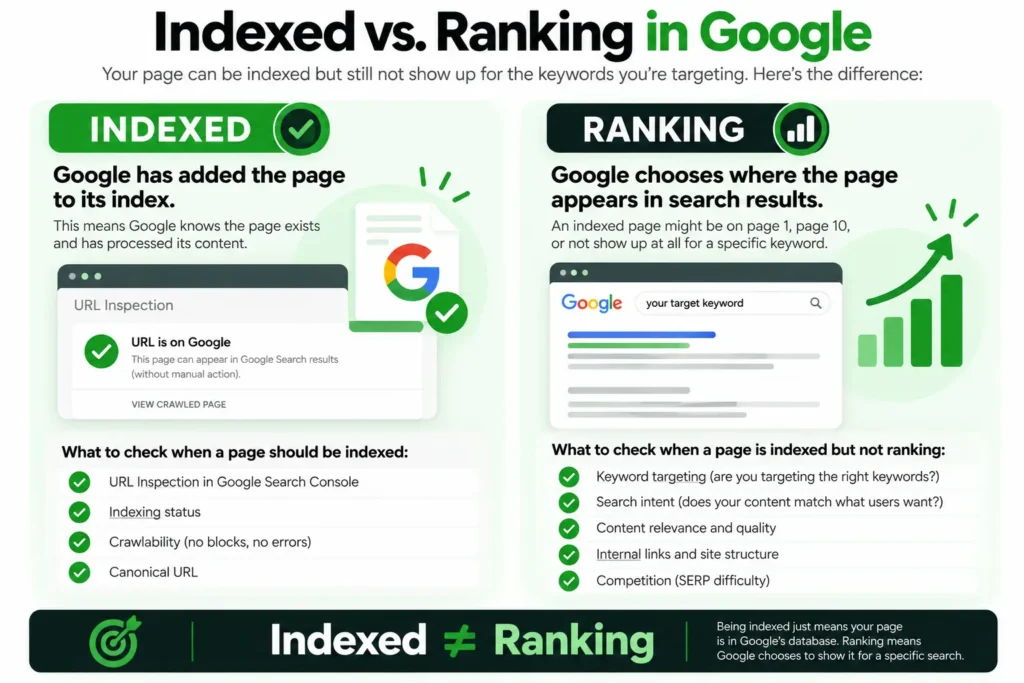
If Google Search Console confirms that your page is indexed but you still can’t find it when searching your target keyword, you may have a ranking problem rather than an indexing problem.
This distinction matters because submitting your sitemap again, requesting indexing repeatedly, or changing your noindex settings won’t improve a page that Google has already indexed.
Once I confirm that a page is indexed, I stop treating indexing as the main problem. One of the next things I look at is keyword research and whether the page is actually targeting the searches we expect it to appear for.
For example, check:
- whether the page targets a keyword people actually search for
- whether the content matches the search intent behind that keyword
- whether the page covers the topic thoroughly enough to answer the query
- whether the title, headings, and content clearly communicate the page’s topic
- whether relevant pages on your website internally link to it
- what types of pages currently rank for the target keyword
- how strong and established the competing pages are
Also remember that indexed doesn’t mean highly ranked. A page can be included in Google’s index while appearing far below the results you normally check.
Before making major changes, use Google Search Console’s Performance report to see whether the page is already receiving impressions for relevant queries. This can help you determine whether Google understands the page but ranks it too low, or whether your current keyword targeting needs to be reconsidered.
At that point, the solution is no longer “get Google to index my website.” It becomes improving the page’s keyword targeting, search intent alignment, relevance, internal linking, and overall SEO.
We’ll keep this distinction important throughout this guide because indexing and ranking are two different stages of appearing in Google Search.
9. You’re Looking for Your Business in Google Maps
If your website appears in Google’s organic search results but your business isn’t showing where you expect it to in Google Maps or the local results, you’re dealing with a different problem.
Your website’s organic visibility and your Google Business Profile are connected parts of local SEO, but they aren’t the same thing. A website can be indexed correctly while the business still has problems appearing in local search.
I’ve worked with businesses where the website wasn’t the real issue. Their Google Business Profile hadn’t been configured correctly, so troubleshooting website indexing wouldn’t have solved the problem.
If this is your situation, check:
- whether your Google Business Profile has been properly set up and verified
- whether your business information is accurate and complete
- whether the correct primary and secondary business categories are selected
- whether your website URL is correctly connected to the profile
- whether your address or service area is configured correctly
- whether there are duplicate or conflicting business profiles
You should also consider where you’re searching from. Google Maps and local search results can vary based on location, relevance, and other local ranking factors, so not seeing your business for one search doesn’t automatically mean your profile is missing from Google.
The easiest way to separate the two problems is to ask:
Can I find my website in Google’s organic results, but not my business in the local results or Maps?
If yes, stop troubleshooting the website as if it has an indexing problem and start investigating your Google Business Profile and local SEO instead.
How to Get Your Website to Show Up on Google
If you want to get your website to show up on Google, start by making sure Google can discover, crawl, and index your pages. If the page is already indexed, shift your attention to keyword targeting and rankings instead of repeatedly trying to submit it.
Here’s the process I recommend:
Set up Google Search Console. Verify your website so you can see how Google is crawling and indexing your pages.
Inspect the affected URL. Use URL Inspection to check whether the page is indexed and identify any crawling, indexing, or canonical issues.
Make sure Google can crawl the page. Check that robots.txt, server errors, redirects, password protection, or other technical issues aren’t preventing access.
Remove accidental noindex directives. If you want the page to appear in search results, confirm that your website isn’t telling Google not to index it.
Check the canonical URL. Make sure your website is consistently signaling the version of the page you want Google to index.
Check your XML sitemap. Important indexable URLs should be included in your sitemap, and the sitemap should be submitted in Google Search Console.
Add relevant internal links. Link to important pages from other related content instead of leaving them isolated from the rest of your website.
Request indexing after fixing a problem. Once you’ve corrected an indexing or crawling issue, inspect the updated URL and request indexing when appropriate.
Improve keyword targeting if the page is already indexed. If Google has indexed the URL but you still can’t find your website for the search you expect, revisit your keyword research, search intent, content relevance, and internal linking.
Check Google Business Profile for local visibility problems. If you’re trying to make your business appear in Google Maps rather than the standard organic results, troubleshoot your Business Profile and local SEO instead.
The important part is not to perform all ten actions blindly. Use Google Search Console to determine which stage is failing, then focus on the corresponding fix.
For example, if the page is set to noindex, improving its keyword targeting won’t make it appear. If the page is already indexed, submitting the same sitemap repeatedly won’t make it rank higher.
The goal isn’t simply to “submit your website to Google.” It’s to make sure Google can discover → crawl → index → understand → rank the pages you want people to find.
Still not sure why your website isn’t showing up on Google?
We can check your website’s indexing, technical SEO, and search visibility to find out what’s preventing it from appearing where it should.
What NOT to Do When Your Website Isn’t Showing on Google
When your website isn’t showing up on Google, making random SEO changes can waste time and sometimes make the problem harder to diagnose.
Before changing anything, use Google Search Console to understand whether you’re dealing with discovery, crawling, indexing, canonicalization, or ranking.
Here are some common mistakes to avoid:
Don’t request indexing over and over. If there’s an underlying technical or indexing problem, repeated requests won’t fix it. Correct the issue first.
Don’t keep resubmitting your sitemap expecting it to force indexing. A sitemap helps Google discover URLs, but submitting one doesn’t guarantee that every page will be indexed.
Don’t rewrite a page before checking whether it’s indexed. If Google can’t crawl the page or it has a
noindexdirective, changing the content won’t solve the actual problem.Don’t change URLs unnecessarily. Changing an established URL creates additional work involving redirects, internal links, canonicals, and sitemaps.
Don’t remove robots.txt rules or canonical tags without understanding why they’re there. These settings can affect many pages, so a sitewide change made to fix one URL can create problems elsewhere.
Don’t assume indexed means ranking. If Google Search Console shows that the page is indexed, stop treating it as an indexing problem and investigate its keyword targeting, search intent, relevance, and rankings instead.
Don’t assume Google Maps visibility is an indexing problem. If you’re trying to find a local business in Maps, check its Google Business Profile and local SEO setup.
The most useful question isn’t simply, “Why can’t I find my website on Google?”
It’s:
“At what point between discovery, crawling, indexing, and ranking is the page getting stuck?”
Once you can answer that, you’ll know which part of the website actually needs your attention.
How Long Does It Take for a Website to Show Up on Google?
There is no guaranteed amount of time for a website or page to show up on Google. Google needs to discover the URL, crawl it, process the page, and decide whether to include it in its index.
For a new website or newly published page, indexing can sometimes happen relatively quickly, while other URLs may take longer. Requesting indexing through Google Search Console can alert Google to a new or updated URL, but it doesn’t guarantee immediate crawling or indexing.
How quickly Google processes a page can also depend on factors such as:
- whether Google can easily discover the URL
- whether the page is internally linked
- whether it appears in your XML sitemap
- whether Google can crawl it without technical problems
- whether the page is allowed to be indexed
- whether Google considers another URL the canonical version
- the overall quality and uniqueness of the page
This is why I don’t recommend judging an SEO or indexing problem based only on how many days have passed.
Instead, check the URL in Google Search Console. If Google hasn’t discovered or crawled it, investigate discovery and crawlability. If it has been crawled but isn’t indexed, investigate the indexing signals and the page itself.
And if the page is already indexed but isn’t showing up for your target keyword, waiting longer isn’t necessarily the solution. At that point, you’re dealing with search visibility and rankings rather than simply waiting for Google to index the page.
My Troubleshooting Checklist When a Website Isn’t Showing on Google
When a website isn’t showing up on Google, I don’t start by changing the content or submitting everything for indexing again. I start in Google Search Console and work through the problem in a specific order.
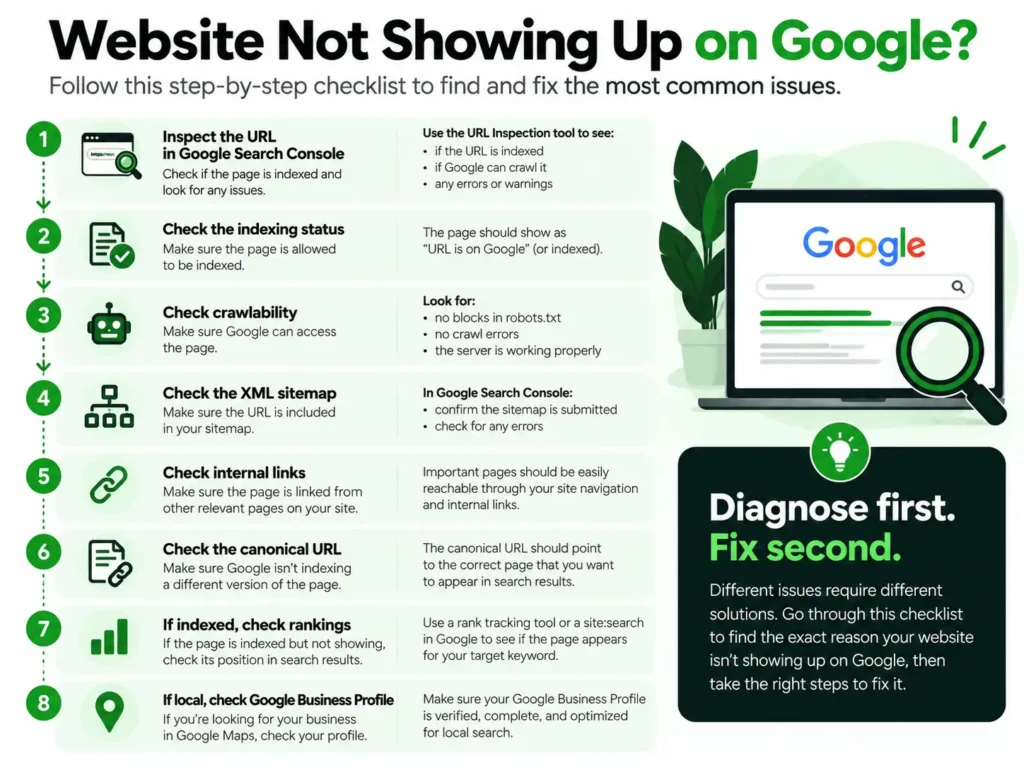
This is the checklist I use:
Inspect the affected URL in Google Search Console.
First, I check whether Google knows about the URL and whether it is indexed.Check the indexing status.
If the page isn’t indexed, I look at the reason Google provides before making changes.Check whether crawling and indexing are allowed.
I look for issues such asnoindex, crawl restrictions, inaccessible pages, redirects, or other technical problems.Check the XML sitemap.
I confirm that the correct URL is included and that Google Search Console can process the sitemap properly. I’ve dealt with sitemap problems that prevented pages from being discovered and indexed correctly, so this is one of the checks I don’t skip.Check internal links.
Important pages shouldn’t be isolated. I make sure Google can reach the page naturally through relevant links elsewhere on the website.Check the canonical URL.
I compare the user-declared canonical with Google’s selected canonical to see whether Google is choosing a different version of the page.If the page is indexed, check its search performance.
At this point, I move away from indexing and look at the queries generating impressions, keyword targeting, search intent, and the page’s relevance to those searches.If it’s a local visibility problem, check Google Business Profile.
If the website appears organically but the business doesn’t appear where expected in Maps, I troubleshoot the local SEO setup separately.
This order matters because each check tells you what to investigate next.
Search Console → Indexing → Crawlability → Sitemap → Internal Links → Canonical → Rankings → Local Search
Following a process like this is much more useful than making several changes at once. If you change your sitemap, content, URLs, internal links, and indexing settings simultaneously, it becomes much harder to understand what the original problem actually was.
Still Can’t Find What’s Keeping Your Website Off Google?
Sometimes the issue isn’t obvious from a single Search Console report. We can take a closer look at your website’s technical SEO, indexing, keyword targeting, and search visibility to identify what’s actually holding it back.
Common Reasons a Website Doesn’t Show Up on Google
If your website isn’t showing up on Google, the fastest way to narrow down the problem is to identify which stage of the search process is failing.
Here’s a summary of the most common causes and what to check first:
| Problem | What It Means | What to Check |
|---|---|---|
| Google hasn't discovered the page | Google may not know the URL exists yet. | XML sitemap and internal links |
| Google can't crawl the page | Google knows the URL but can't properly access it. | robots.txt, server errors, redirects, and page accessibility |
| The page is set to noindex | Google has been instructed not to include the page in search. | Meta robots directives and WordPress SEO settings |
| Google crawled but hasn't indexed the page | Google accessed the URL but hasn't added it to the index. | Search Console indexing status, content value, and duplication |
| Google selected another canonical URL | Google considers another URL the primary version. | Canonical tags, duplicate URLs, and Google-selected canonical |
| The website or page is new | Google may still need to discover, crawl, and process it. | Search Console, sitemap, internal links, and URL Inspection |
| URLs changed after a redesign | Google may still know the old URLs or encounter broken paths. | 301 redirects, internal links, sitemap, and new URLs |
| The page is indexed but not ranking | This is a search visibility problem rather than an indexing problem. | Keywords, search intent, relevance, internal links, and performance data |
| The business isn't appearing in Maps | The problem may be related to local search rather than website indexing. | Google Business Profile and local SEO setup |
The key distinction is whether Google can’t find or index the page or whether Google has already indexed it but isn’t ranking it for the search you’re checking.
Those are two different problems, and they require different fixes.
FAQs About Websites Not Showing Up on Google
Why is my website not showing up on Google?
Your website may not be showing up on Google because Google hasn’t discovered or crawled it yet, the page isn’t indexed, a noindex directive is blocking indexing, Google selected another canonical URL, or the page is indexed but doesn’t rank for the search you’re checking.
The fastest way to identify the cause is to inspect the affected URL in Google Search Console rather than guessing which SEO issue is responsible.
How do I know if my website is indexed by Google?
Use the URL Inspection tool in Google Search Console and enter the exact URL you want to check. It will tell you whether the URL is on Google and provide information about crawling, indexing, and canonicalization.
A site: search can provide a quick indication, but Search Console gives website owners much more useful diagnostic information.
How do I get my website to show up on Google?
To get your website to show up on Google, make sure Google can discover, crawl, and index your important pages. Submit an XML sitemap, create crawlable internal links, remove accidental noindex directives or crawl restrictions, and use Google Search Console to identify technical indexing problems.
If the page is already indexed, focus on keyword targeting, search intent, relevance, internal linking, and rankings instead of trying to submit it repeatedly.
How long does it take for a new website to show up on Google?
There is no guaranteed timeframe for a new website to show up on Google. Google first needs to discover the site, crawl its pages, process them, and decide which URLs to index.
You can help discovery by submitting your sitemap, using clear internal links, and requesting indexing for important URLs through Google Search Console when appropriate, but none of these methods guarantee immediate indexing.
Why is my website indexed but not showing in Google Search?
If your website or page is indexed but doesn’t appear when you search for a particular keyword, you’re likely dealing with a ranking issue rather than an indexing issue.
Check Google Search Console’s Performance report to see whether the page is receiving impressions and which queries are triggering it. Then evaluate the page’s keyword targeting, search intent, relevance, internal linking, and competition for the search you’re trying to rank for.
Final Thoughts: Diagnose the Problem Before Trying to Fix It
If you’re asking “Why is my website not showing up on Google?”, don’t assume the answer is simply that you need more SEO.
Start by identifying where the problem occurs:
Discovery → Crawling → Indexing → Canonicalization → Ranking → Local Visibility
Google Search Console should be your starting point. Check the affected URL, understand its indexing status, and then investigate the specific issue instead of changing multiple things at once.
From my experience, some of the most useful checks are also the simplest: confirming the page is indexed, checking the sitemap, looking for an accidental noindex setting, and making sure Google can actually access the URL.
And remember the most important distinction from this guide: a page that isn’t indexed and a page that is indexed but isn’t ranking are two different SEO problems.
Fix the stage that’s actually failing.
If you’ve worked through these checks and still can’t determine why your website isn’t showing up on Google, MaTox Digital Agency can help identify the technical, indexing, or SEO issue that’s holding it back and build a clear plan for improving your search visibility.
Ready to Improve Your Website’s Google Visibility?
If your website is indexed but still isn’t getting the search visibility you expect, MaTox Digital Agency can help. We combine technical SEO, keyword research, on-page optimization, and a clear search strategy to help your website get found by the right people.

About the Author
Makedonka Tochevska
Makedonka Tochevska is the founder of MaTox Digital Agency and a web designer and front-end developer. She works on website design and redesign projects with a focus on WordPress development, user experience, website performance, and SEO implementation.
Her work includes planning and building business websites, construction and architecture websites, improving existing websites, and handling the technical and SEO details that need to be considered when a website changes.